What is the SkylineGlobe Server Manager
The SkylineGlobe Server (SGS) Manager is a centralized web management and configuration tool for performing all the following:
§ Controlling and monitoring the services provided by SGS: Terrain Service, Feature Service, Maps Service, 3D Layer Service, and Point Cloud Service.
§ Controlling and monitoring your SkylineGlobe servers.
§ Managing your users and user groups.
§ Configuring data sources for each of the different sources of data being published to SkylineGlobe Server. Data sources define the connection information to the data published to SkylineGlobe Server.
All management and configuration activities are organized under the following pages:
§ Overview
§ Sites
§ Layers
§ Users
§ Settings
§ Reports
§ Messages
SkylineGlobe Server Manager Pages
Overview
SkylineGlobe Server Manager’s Overview page gives a quick overview of server uptime, active sessions, and data transfer of your SkylineGlobe Server and each of its sites.
For more information, see the "Managing SkylineGlobe Server" chapter.
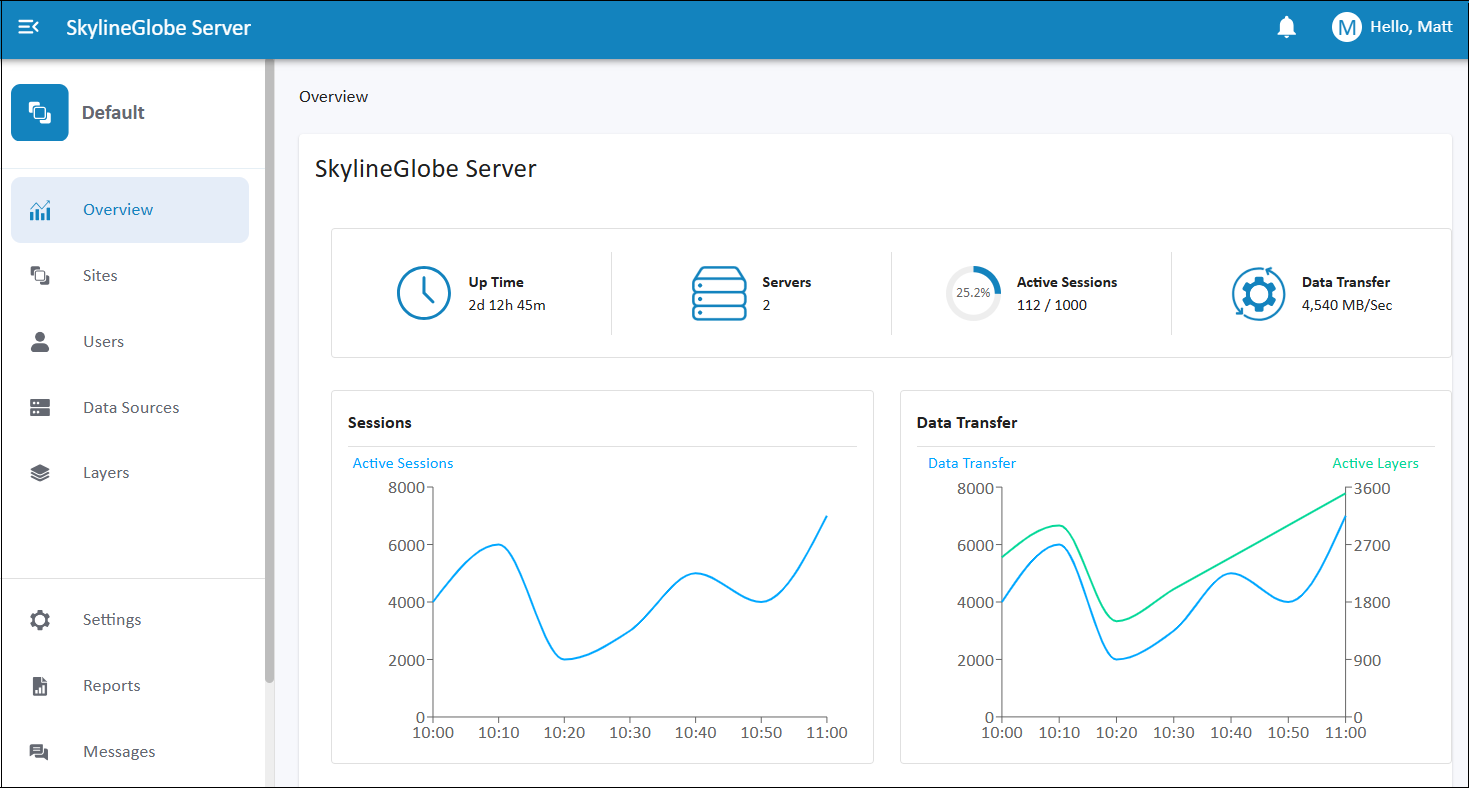
Overview Page
Sites
From SkylineGlobe Server Manager’s Sites page, you can manage all your server's sites: add, delete, and edit properties, and open a specific site in SGS Manager. The Sites page is only displayed for Super Administrators. For more information, see the "Working with Sites" chapter.
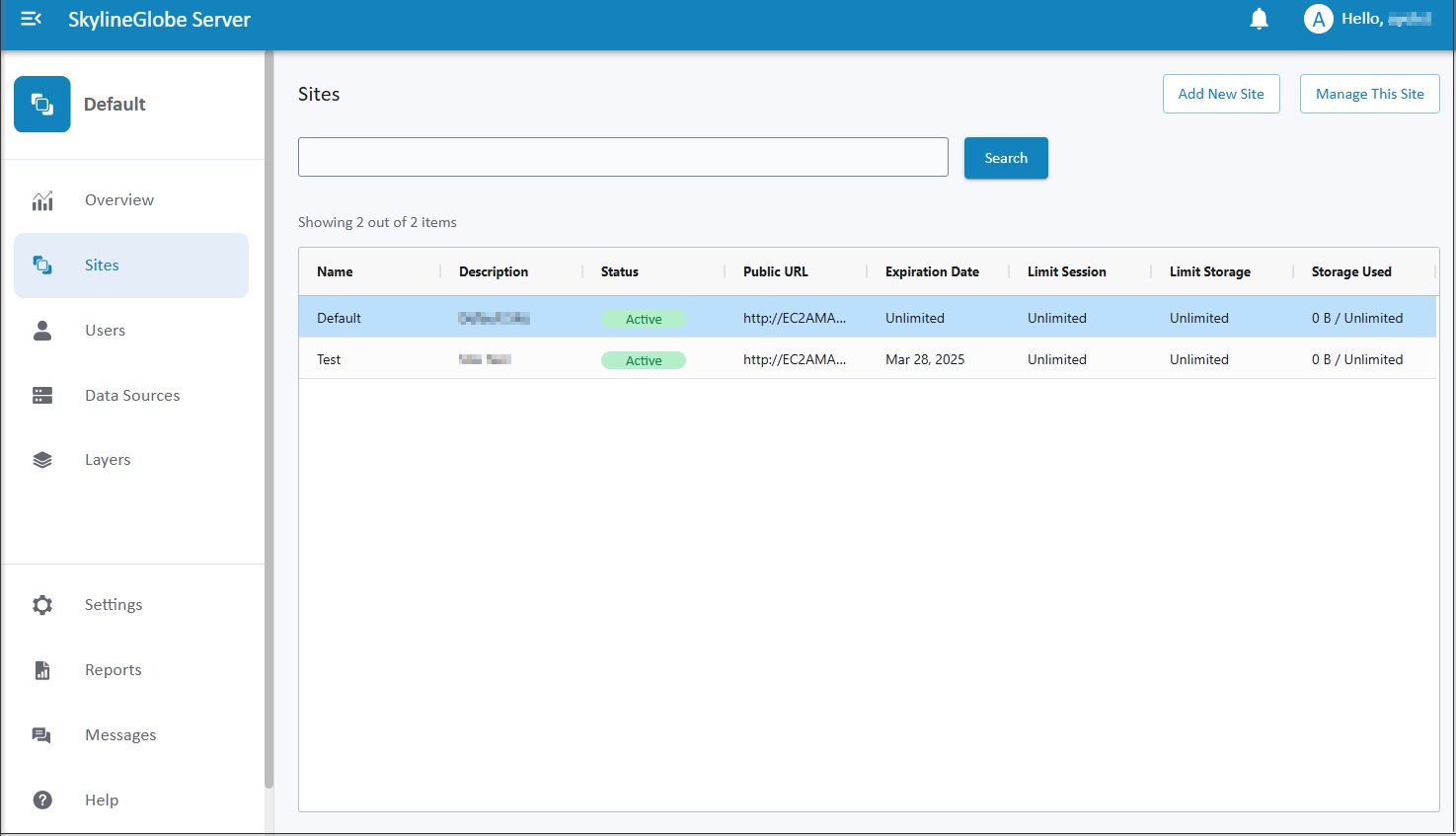
Sites Page
Users
From SkylineGlobe Server Manager’s Users page, you can manage your users and user groups:
§ Add and delete users
§ Modify user roles (permissions), groups, authorization modes, and passwords
§ Add and delete user groups
§ Modify the data sources associated with each user group
For more information, see the "Managing Users" chapter.
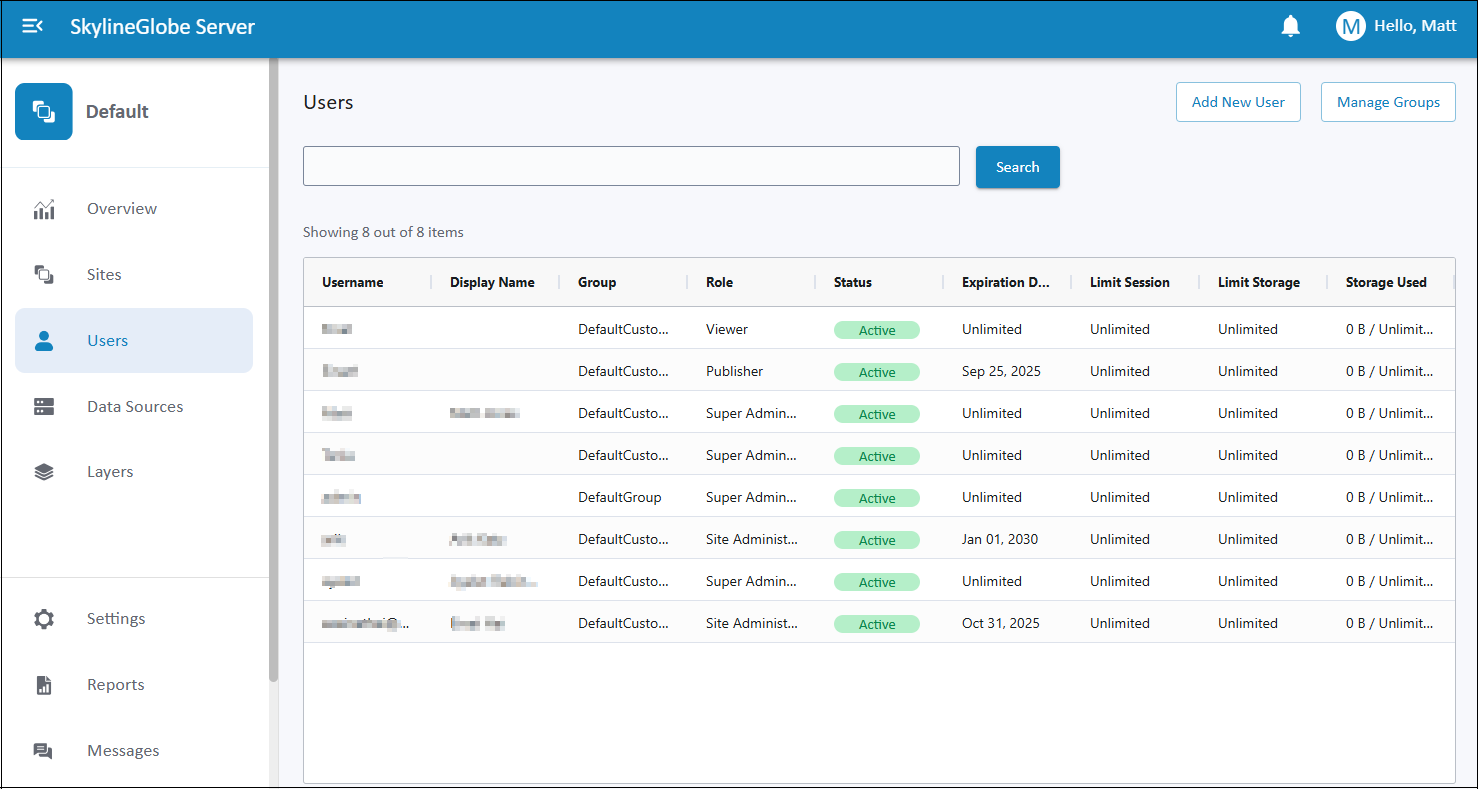
Users Page
Data Sources
Data sources define connection information to the server’s data stores, i.e., the physical place where the data is stored. There are two types of data sources:
§ For existing data on the server (server-side) – These data sources define the connection information to an existing folder or database. The connection to this data store is primarily unidirectional: After connecting to this data store, scanning its data and allowing you to select which of its layers to publish, SkylineGlobe Server serves its data in response to client requests.
§ For uploading and publishing to SkylineGlobe Server geospatial layers and complete projects from TerraExplorer or other Skyline client applications (client-side) – These data sources define the path to a repository folder for uploaded data. The connection to this data store is bi-directional: TerraExplorer or another Skyline client application first connects to SkylineGlobe Server to upload and publish its data. SkylineGlobe Server subsequently stores the uploaded data and serves it in response to client requests.
From SkylineGlobe Server Manager’s Data Sources page, you can add and delete data sources and modify their properties. When adding or editing a server-side data source, SkylineGlobe Server scans the data folder or database and allows you to select which of its layers to publish. Whenever changes are made to this data folder, the data source can be rescanned to update the server. For more information, see the "Working with Data Sources" chapter.
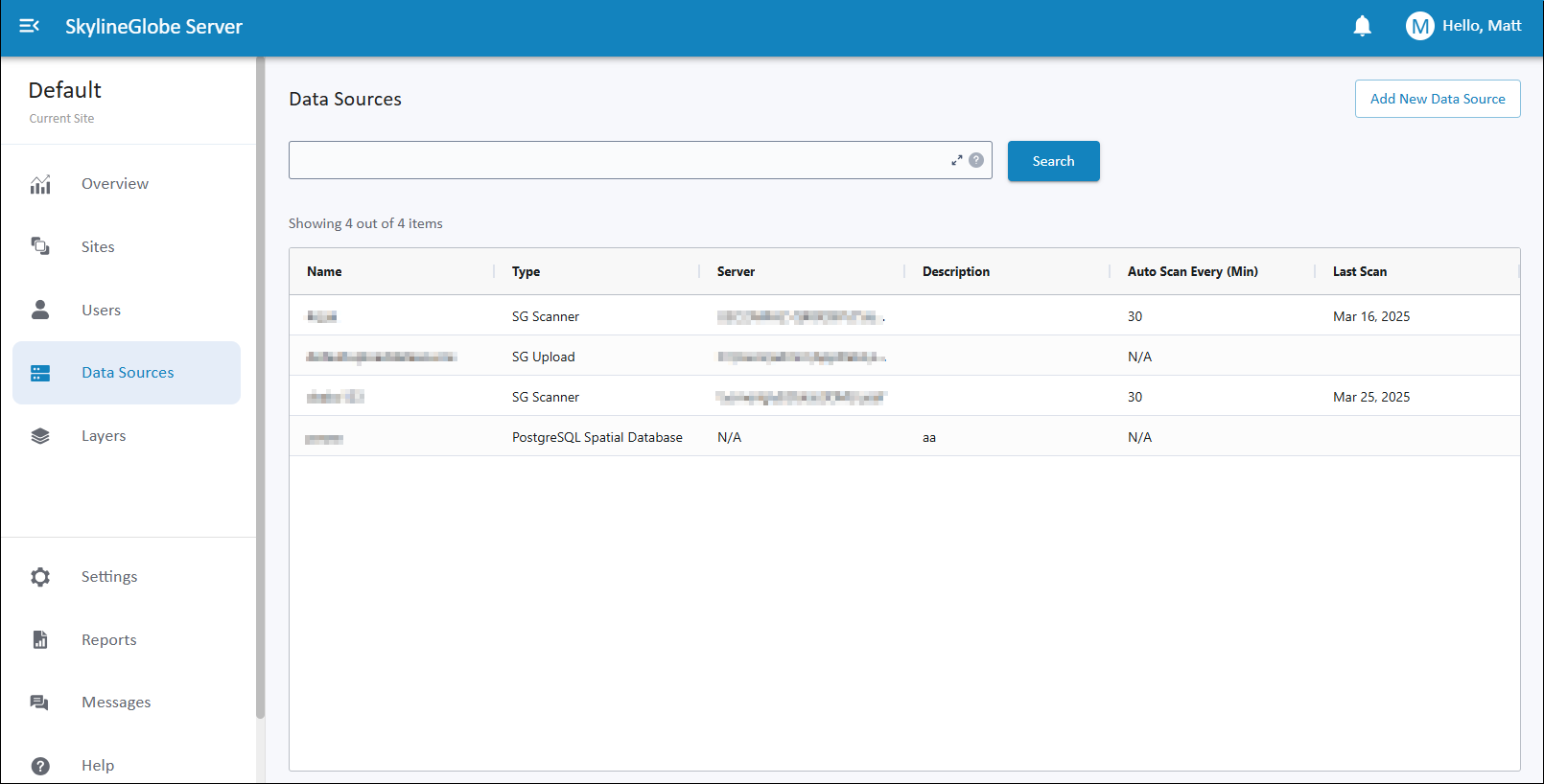
Data Sources Page
Layers
From SkylineGlobe Server Manager’s Layers page, you can manage all layers from all SkylineGlobe server data sources to which you have view access, both layers from the connected site and layers from other sites. This includes deleting layers, modifying their properties and aliases, and managing deleted layers (permanently deleting or restoring them). Layer categories can be assigned to layers to organize them and make them easier to search. When layer categories are enabled, a category tree displays on the Layers page, by which layers can easily be filtered according to their assigned category. For more information, see the "Working with Layers" chapter.
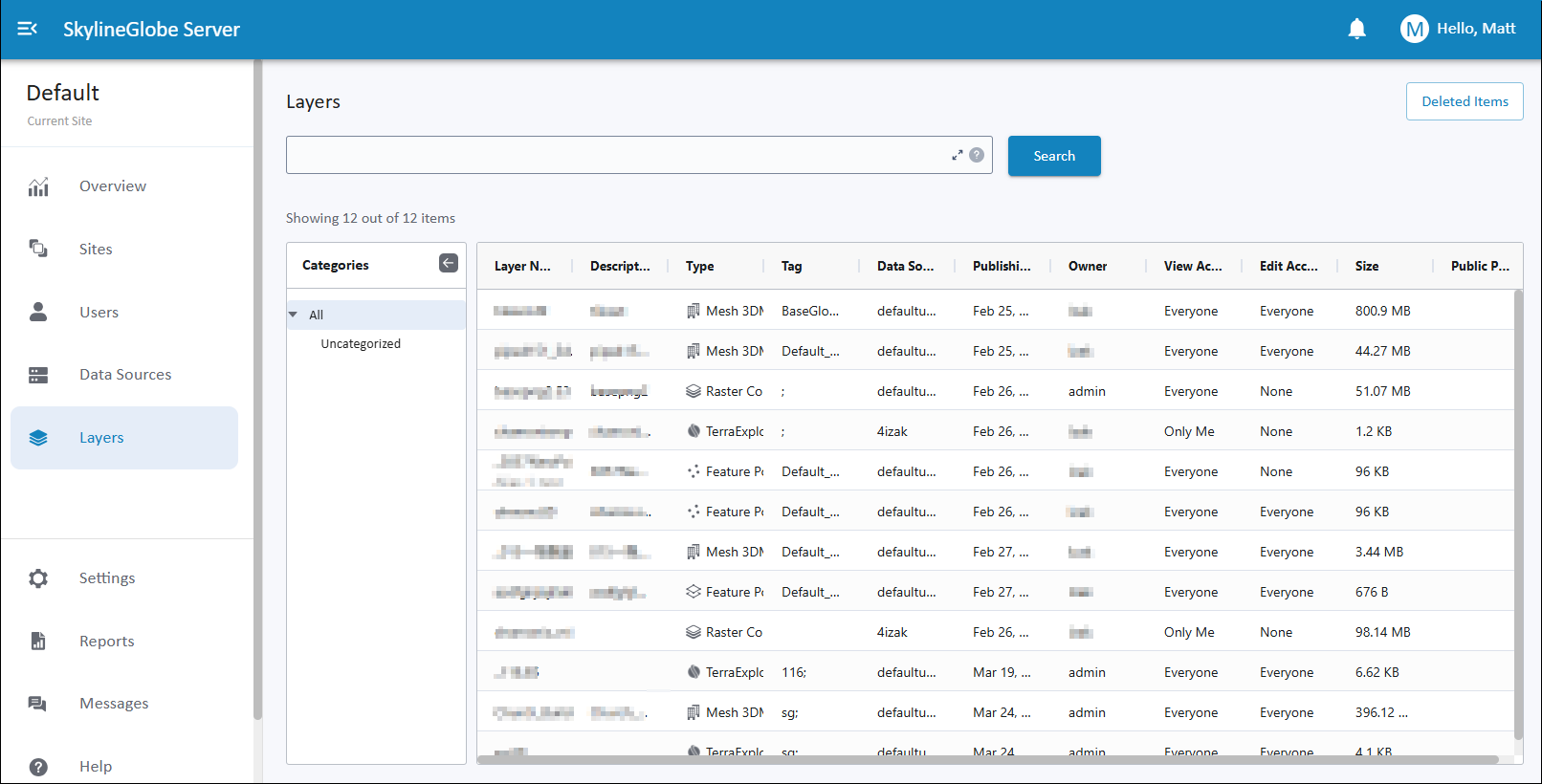
Layers Page
Settings
From SkylineGlobe Server Manager’s Settings page, you can view and configure general SkylineGlobe Server settings, such as the server name reported to clients, URL used to connect to SGS, authorization mode, cache folder and various WMS and TBP settings. For more information, see the "SkylineGlobe Server Settings" chapter.
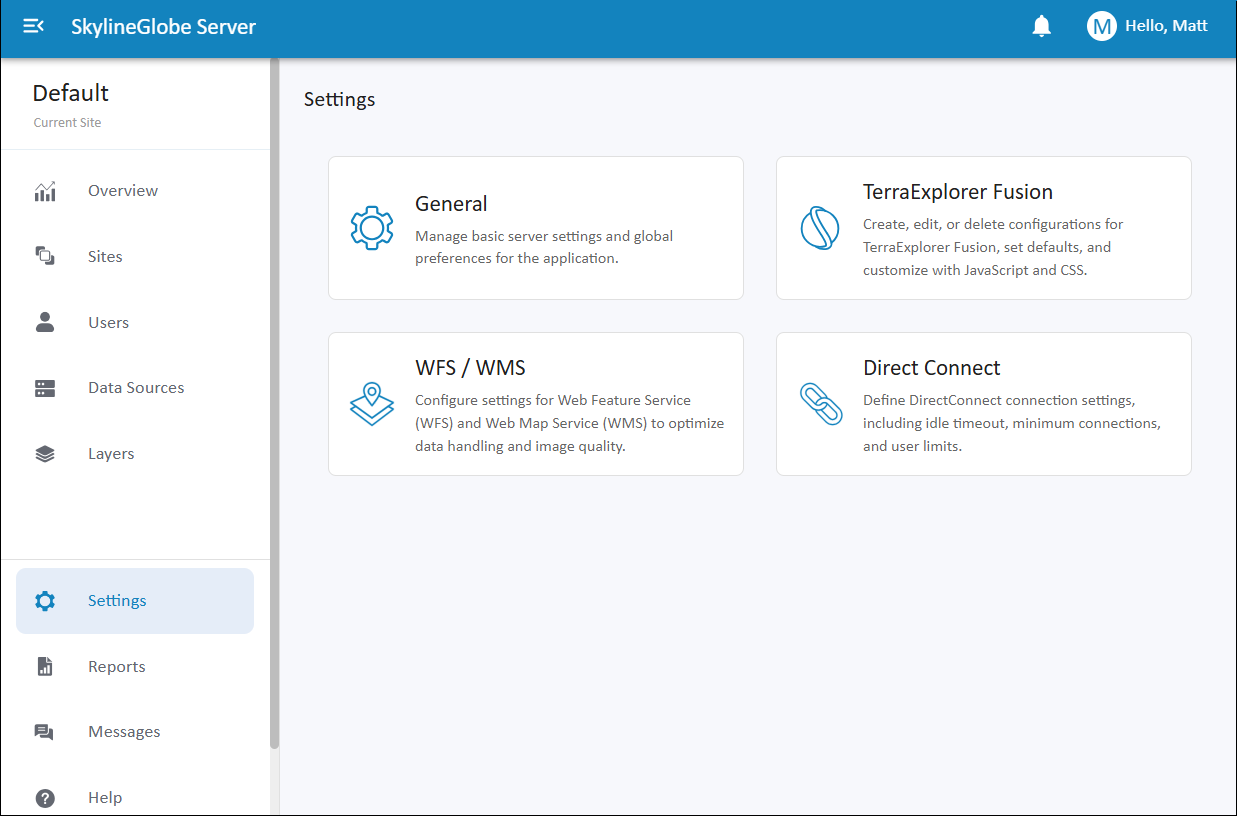
Settings Page
Reports
The Reports page provides access to two types of reports: Data Reports and System Operation Reports.
§ Data Reports focus on actions involving user data, including uploads to the server and data streaming from it.
§ System Operation Reports cover system activities, including:
§ Administrative Operations: Creation and modification of sites, users, groups, and categories, system settings changes, crashes and unhandled errors.
§ Access Control Events: Login attempts, password updates, and logout actions.
§ System Alerts: Notifications about upcoming site or user expirations or when thresholds like maximum session counts or upload limits are exceeded.
The Reports page allows you to filter results by date range and perform structured searches using specific fields and operators. Autosuggest is available within the structured search to help select valid fields and values.
For more information, see the "Generating Data Statistics Reports" chapter.
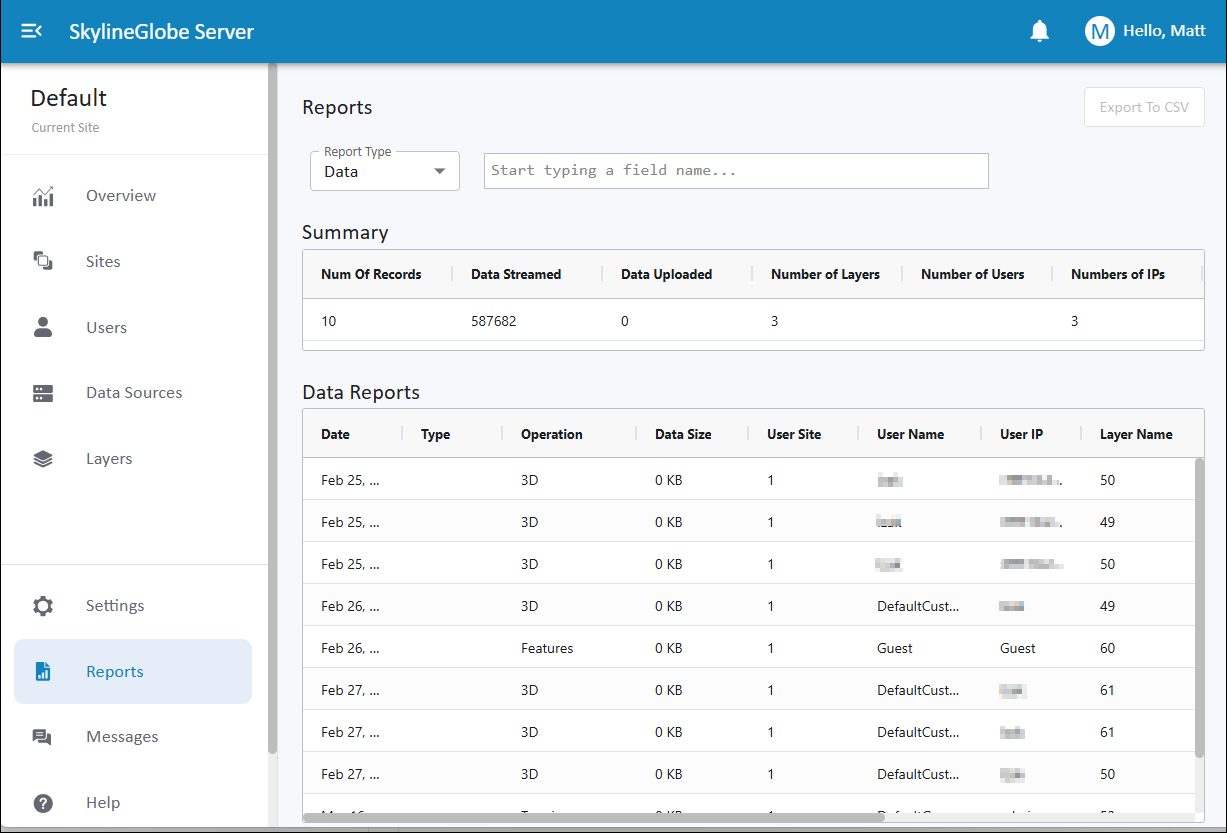
Reports Page