Managing User Groups
From the User’s page you can also manage your user groups. User groups enable you to easily provide view or edit access to a specific group of users (of which you are a member). A specific data source can be defined for each group to which all data from all users in the group should be uploaded and published.
The following user management activities can be performed from the Users page:
§ Editing user group properties
Searching for User Groups
To search for a user group whose property information contains a specific string (e.g., ID, Name, Data Source), do the following:
1. From the SkylineGlobe Server Manager menu, select Users. The Users page is displayed.
2. Click Manage Groups. The Groups page is displayed.
3. In the Search field, type a search string or enter an attribute, condition, and value and click Search. The autosuggest feature will suggest relevant options as you type. Click the required option. The Groups list is filtered based on your search criteria.
Adding New User Groups
User groups enable you to easily provide view or edit access to a specific group of users (of which you are a member). A specific data source can be defined for each group to which all data from all users in the group should be uploaded and published.
To add a new user group:
1. From the SkylineGlobe Server Manager menu, select Users. The Users page is displayed.
2. Click Manage Groups. The Groups page is displayed.
3. Click Add New Group. The Add Group panel is displayed.
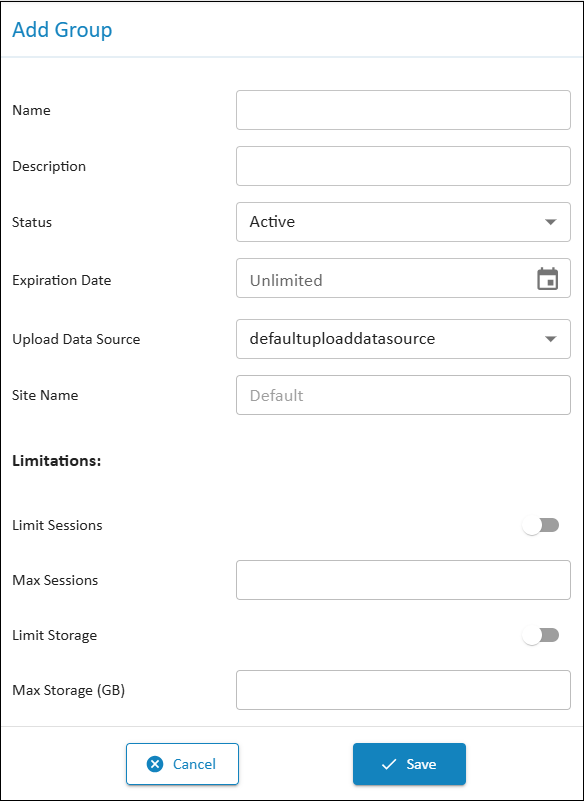
Add Group Panel
4. Enter the following information:
|
Field |
Description |
|
Name |
Group name. |
|
Description |
Free text description of the group. |
|
Status |
Select if the group should be currently active. Note: A group cannot be set to inactive if the currently logged-in user belongs to this group. |
|
Expiration Date |
Expiration date for the group account. Note: A group cannot be set to expired if the currently logged-in user belongs to this group. |
|
Upload Data Source |
Data source to which all data from this group should be uploaded. Distinct data sources can be defined for different user groups. Each user group’s data is automatically published to its predefined data source. |
|
Site Name |
Server site for this group (Read-only). See "About Working with Sites" in the "Working with Sites" chapter for information. |
|
Limitations |
|
|
Limit Sessions |
Switch this option on to set a limit on the number of concurrent clients for this group. |
|
Max Sessions |
Max sessions for this group. The number entered must be lower than the Max Sessions for the server defined in each SGS license. |
|
Limit Storage |
Switch this option on to set a limit on storage for this user. |
|
Max Storage |
Max storage for this user. The number entered must be lower than the server’s Max Storage defined in the SGS license. |
5. Click Save.
Editing User Group Properties
To edit user group properties:
1. From the SkylineGlobe Server Manager menu, select Users. The Users page is displayed.
2. Click Manage Groups. The Groups page is displayed.
3. Right-click a group, and select Properties. The Update Group panel is displayed.
4. Modify the properties as required. See "Adding New User Groups" in this chapter for information.
5. Click Update.
Deleting User Groups
To delete a user group:
1. From the SkylineGlobe Server Manager menu, select Users. The Users page is displayed.
2. Click Manage Groups. The Groups page is displayed.
3. Right-click a group, and select Delete. The Delete Group panel is displayed with a warning message that deleting the group will permanently remove all associated data.
4. Click Delete if you want to delete the user group.